 ZippyCraft
How do I edit photos by just telling the AI what I want?
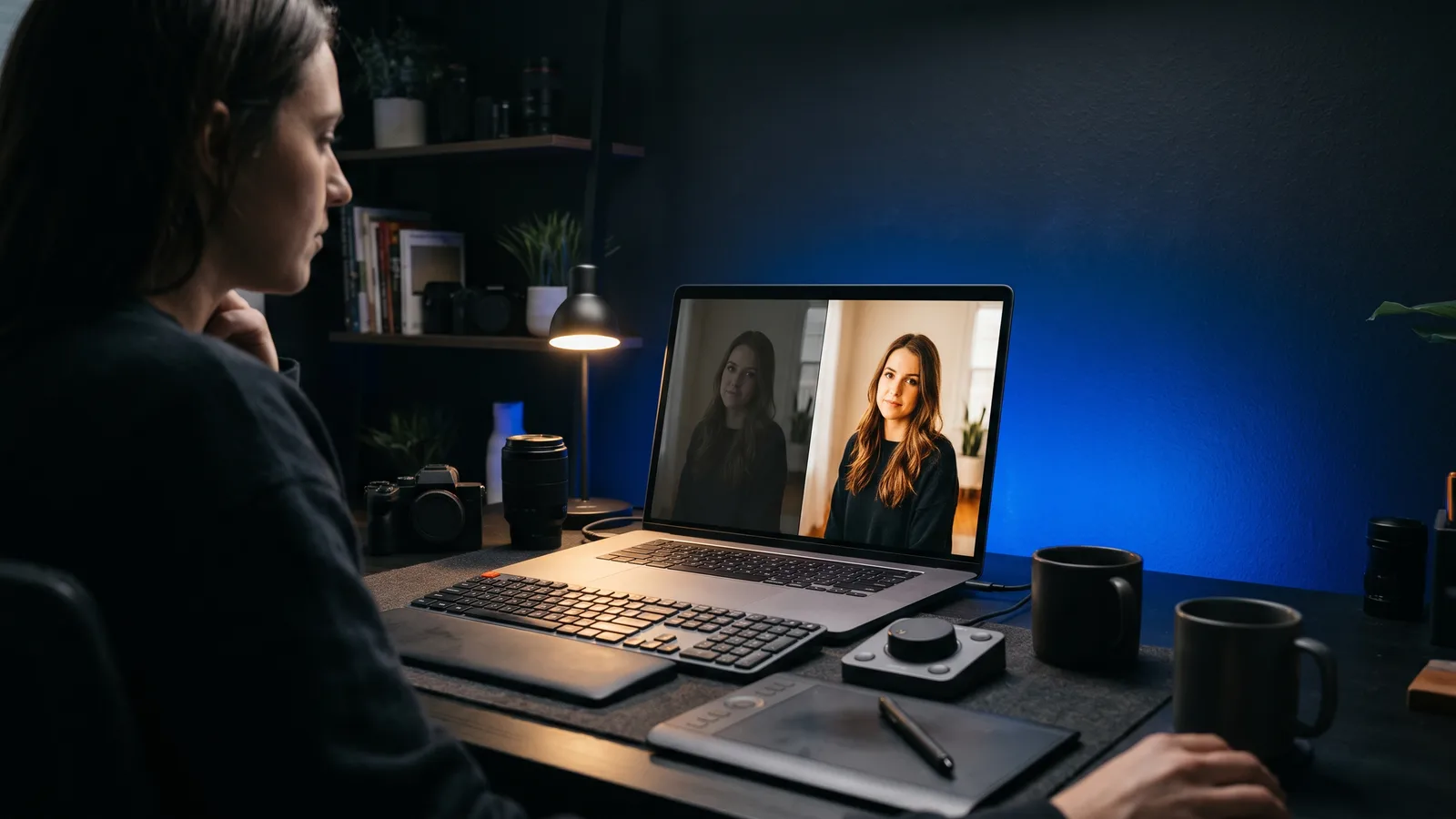
You edit photos with AI prompts by typing or saying what you want, such as "brighter and warmer", and letting the software make the change. Some tools redraw the pixels. Others move real editing sliders you can see and adjust. For photographers, slider-based editing keeps the original photo intact and every change reversible.
Key takeaways
- Prompt-based editing means you describe the result in plain words instead of hunting through panels.
- Generative editors (like ChatGPT's image tools or Photoshop's Generative Fill) create new pixels. Slider-based editors change settings such as exposure and white balance.
- The best prompts name the target, the look you want and what must stay the same.
- ZippyCraft is our pick for slider-based prompt editing: it edits with real sliders, checks its own work and keeps your originals untouched.
- ZippyCraft gives you 100 free edits, no expiry, the full app with the AI included, no API keys needed.
What does it mean to edit photos with AI prompts?
It means you give the editor an instruction in everyday language, and the AI turns it into edits. You no longer need to know which slider does what.
Instead of dragging Exposure, Temperature and Vibrance yourself, you write "brighter and warmer". The AI decides how far to push each control.
There are two very different ways this can work, and the difference matters if you care about your photos.
Do AI prompts redraw my photo or adjust it?
It depends on the tool. A generative editor produces a new image based on your original and your prompt. OpenAI describes its newer ChatGPT Images as following edit requests more closely, "changing only what you ask for", and it also says results remain imperfect.
A slider-based editor does something else. It changes the same controls you would move by hand: exposure, contrast, white balance, colour, crop. The pixels are not invented. They are re-rendered from your file with different settings.
ZippyCraft works this way. The AI uses real editing sliders on a non-destructive raw editor, so you can see everything it did and change any of it. Your original files are never touched, and the AI only receives previews.
How do I write prompts that work?
Describe the result you want, name the photo or area, and say what to leave alone. BeFunky's guide to edit prompts makes the same points: say what should stay unchanged, avoid vague words like "better", change one major thing at a time, and refine by iterating.
Here is a simple method:
- Start with the look: "brighter and warmer", "moody and contrasty", "soft and airy".
- Name the target if it isn't the whole photo: "the bride's dress", "the sky".
- Say what to protect: "keep the skin tones natural".
- Review the result, then reply to refine it.
What example prompts work in ZippyCraft?
These are the kinds of requests ZippyCraft is built for. Each one is plain English:
- "Brighter and warmer" for a flat, cool-looking indoor shot.
- "Crop in on the couple" or "cut out the sign on the left" for composition.
- "Square for Instagram", "4:5" or "16:9 for YouTube" to set a crop shape.
- "Too warm" as a follow-up when the first try went too far.
- "Again but warmer" to nudge a result the other way.
- "Same for the next 5" to carry an edit across more photos.
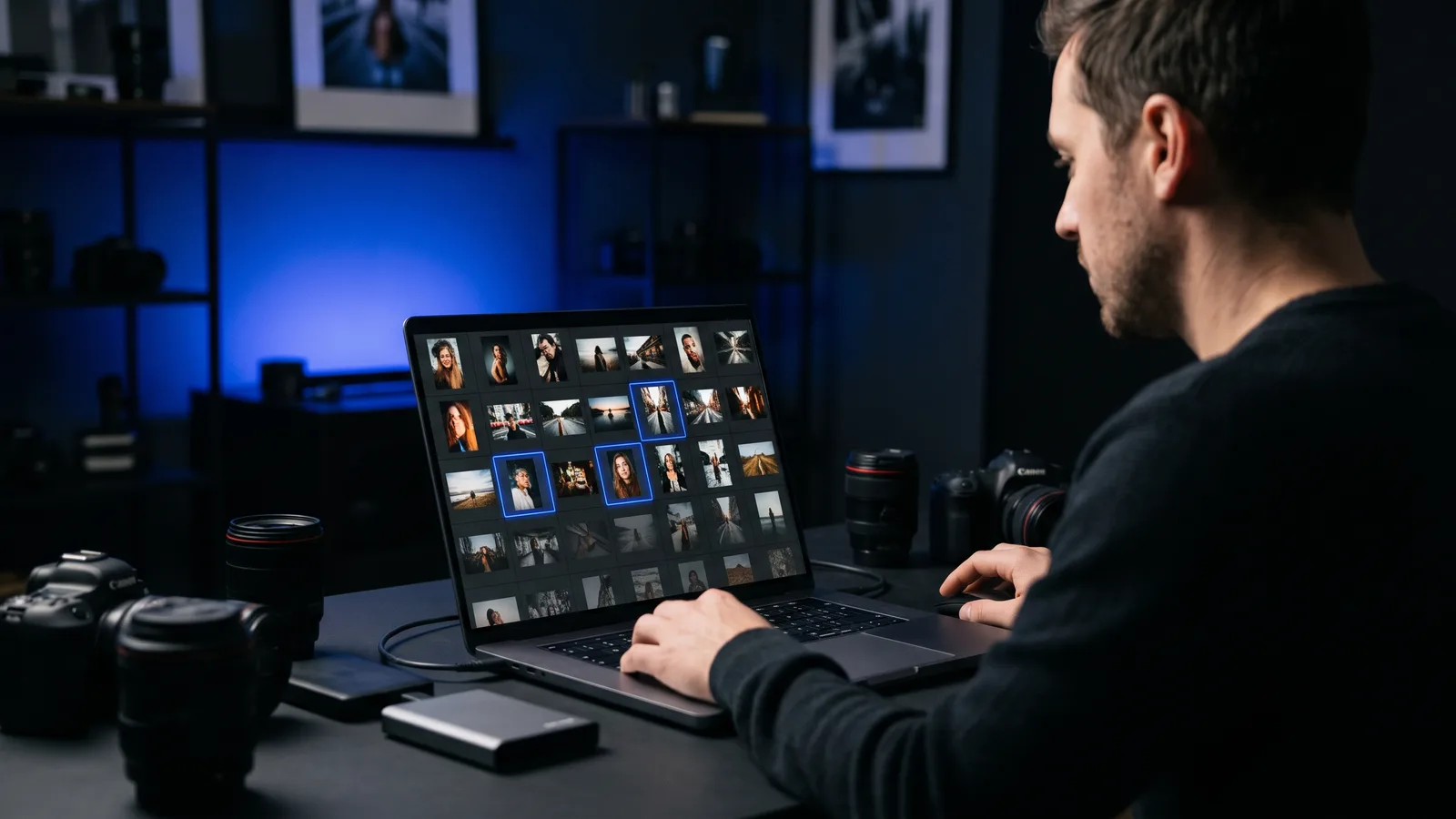
- "Cull the blurry shots" or "Just pick my best shots" when the job is choosing, not editing.
ZippyCraft also understands references like "the first 10", "the picks" or "the ones you didn't edit". If a request is unclear, it asks which photos you meant.
What if the first result isn't right?
Reply to the photo, just as you would to a person. Every photo in ZippyCraft has its own chat, so you can say "too warm" or "again but warmer" and the AI continues from where it was.
Every AI change is also saved as a version: Original, V1, V2 and so on. Click any version to go back, or drag a Before / After line across the photo to compare.
Can I use one prompt on a whole shoot?
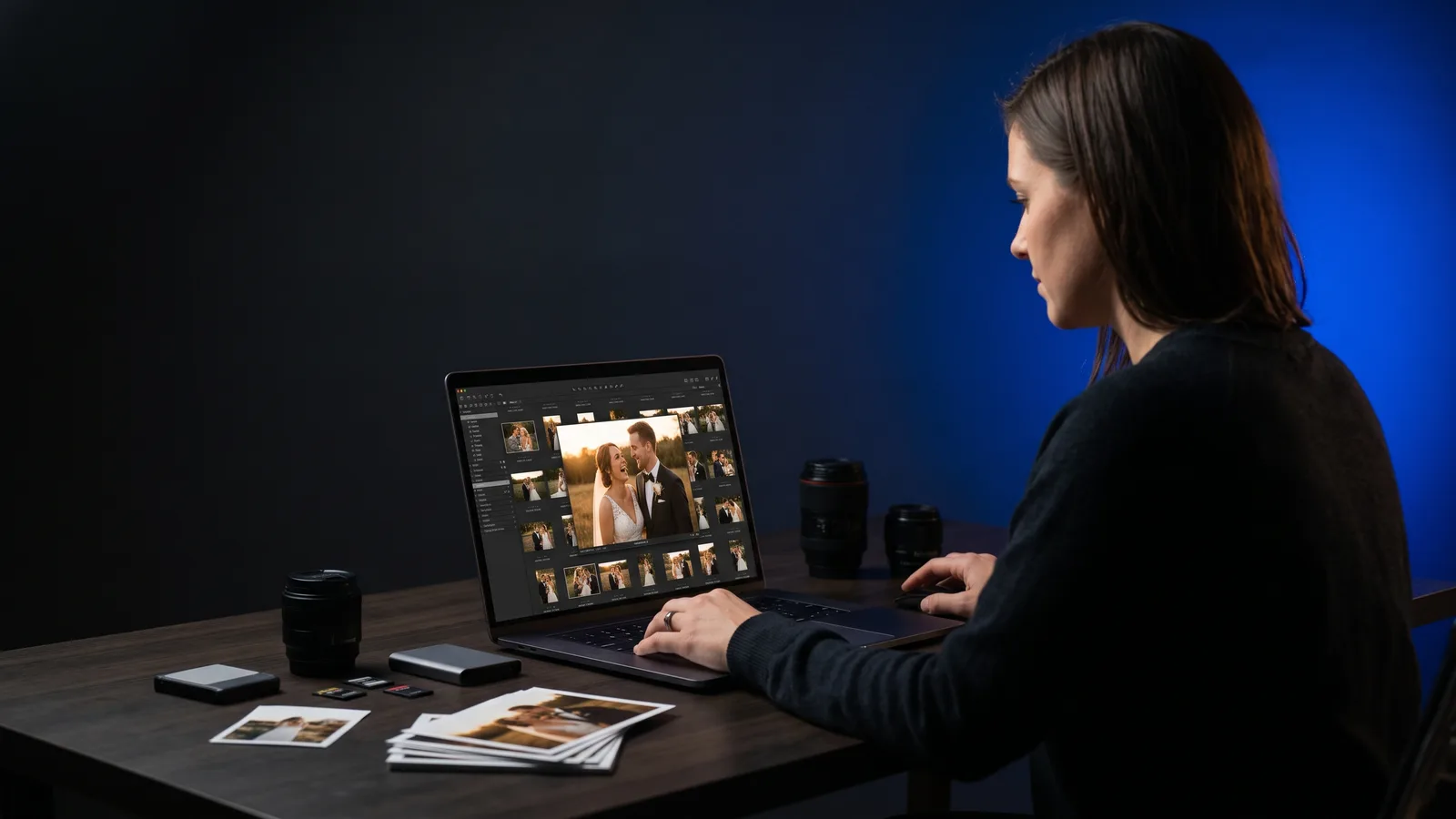
Yes, in a tool built for batches. ZippyCraft can edit one photo, a selection, the next N photos or every photo in view. You choose how many photos the AI works on at once (1 to 8), and it can skip photos you have already edited, so "next 25" means the next 25 new ones.
Before you send, you see the estimated cost and time. Runs of 40 or more photos ask you to confirm.
If you do the same kind of edit often, save it as a recipe. A recipe is a saved prompt under your own name, and you can set one as your default. ZippyCraft also ships with built-in recipes, including Make it POP, Do My Editing for Me, Just Make It Look Great, Copy My Style, Bright & Dreamy, Moody Movie Look, Sell the House, Timeless Black & White and Just Pick My Best Shots.
If you want a specific look, you can upload a reference image or use the photo on screen, and the AI matches it.
How does the AI know it got the edit right?
In ZippyCraft, the AI looks at its own result and corrects it instead of accepting its first try. You choose how hard it works: Fast, Balanced or Thorough. You can also say "keep going until it's perfect".
It reads professional scopes as numbers, including the histogram, RGB parade, waveform and vectorscope. It measures what you asked for, so "black" has to measure as black. It spots yellow or blue colour casts and uses the white balance eyedropper on something that should be white.
You can watch this happen. The Watch It Edit stage shows sliders gliding to new values with speech bubbles explaining each step. Replays of past AI edits are free and do not use any edits.
Which tools let you edit photos with prompts?
Several tools now accept text instructions, but they are built for different jobs. This is a fair look at the main ones as of November 2026. Prices can change, so check each official page.
ZippyCraft is made by the team behind this blog.
| Tool | Best for | Key features | Price / free option | Watch-outs |
|---|---|---|---|---|
| ZippyCraft (our pick) | Photographers who want to edit a shoot by saying what they want | Plain-English prompts, real sliders, self-checking AI, batch editing, culling, per-photo chat, versions, full raw editor | 100 free edits, no expiry, the full app with the AI included, no API keys needed | Desktop only (Mac and Windows); AI editing needs internet; no generative image creation or compositing |
| ChatGPT image editing | One-off creative changes, adding or blending elements | Chat-based edits; OpenAI says edits keep lighting, composition and appearance consistent | Free plan $0; Plus $20 per month (OpenAI pricing page) | Generates a new image rather than adjusting sliders; OpenAI says results remain imperfect |
| Adobe Photoshop Generative Fill | Adding, removing or replacing content in a selection | Text prompts inside a selection; Generative Layers keep the original; several variations | Included with Creative Cloud with a set number of generative credits; free trial | Needs a selection and credits; subscription app |
| Adobe Lightroom | A subscription raw workflow with cloud storage | Generative Remove (non-destructive, no credits deducted); Firefly AI Assistant in the Firefly web app for higher plans | From US$11.99 per month (annual plan, billed monthly), 7-day free trial | No free desktop tier; the Firefly AI Assistant is limited to Creative Cloud Pro and Firefly Pro, Pro Plus and Premium plans |
| Luminar Neo | An AI-heavy editor with a one-time purchase | AI Assistant that applies edits from your description; GenErase, GenExpand, GenSwap | Desktop Only $99 one-time, a temporary Black Friday sale price as of November 2026 (shown as down from $417); includes one year of AI tools | AI tools auto-renew after the first year; the sale price is temporary |
Why is ZippyCraft our pick?
Because it matches how photographers actually work: lots of photos, and a need to stay in control. It edits with the same sliders you would use, so nothing is a black box. You can tweak any value it set.
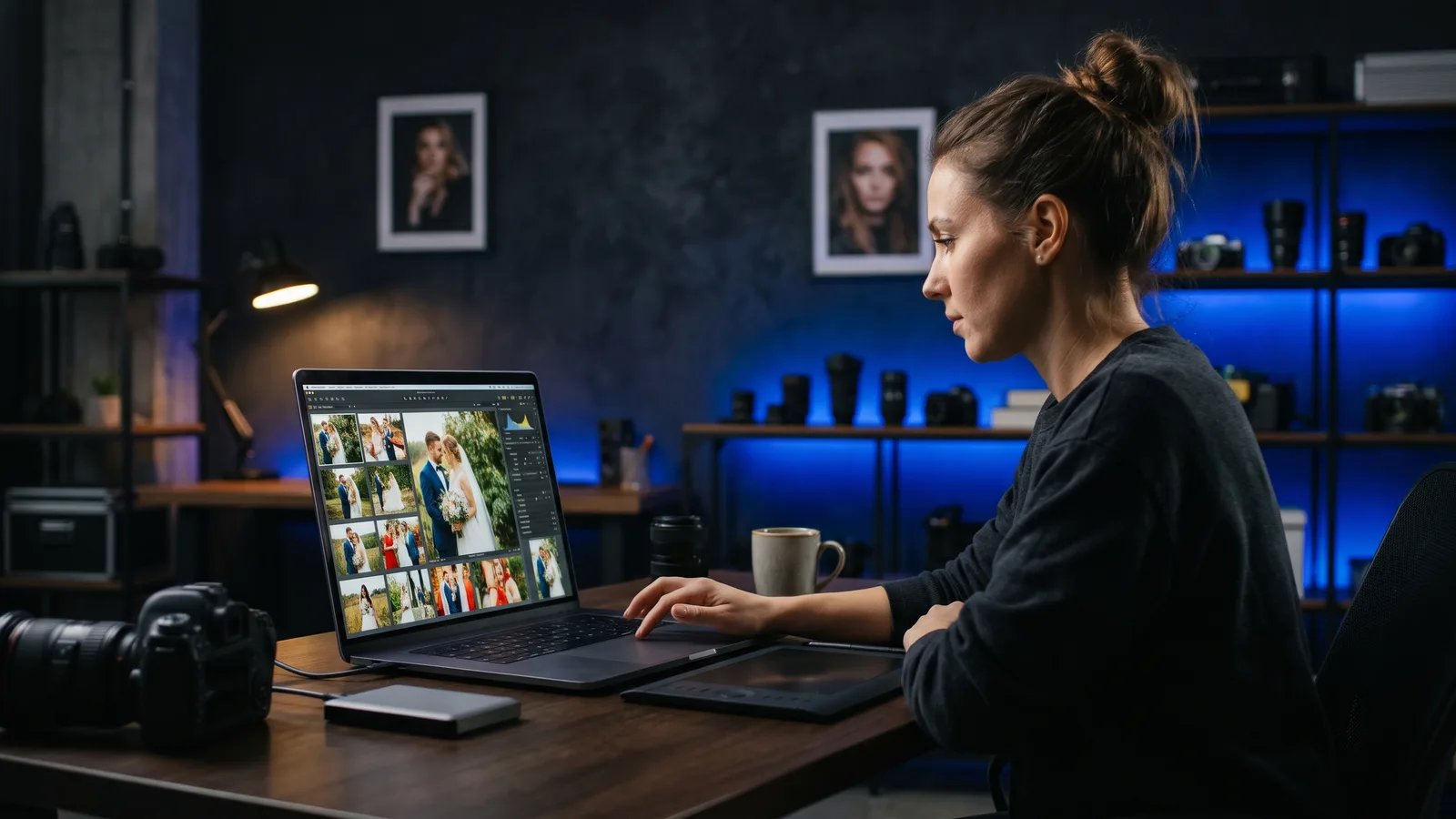
It also checks its own work, explains every step and keeps originals untouched. It can cull and keep the best shots, and it applies edits across a folder in one go. When you want to take over, a full non-destructive raw editor is right there.
If you want to download ZippyCraft free, you get 100 free edits with no expiry. One edit covers one photo. Manual editing and replays never use edits.
When is another tool the better fit?
If you need to create or replace content in a photo, a generative tool is the more direct choice. Photoshop's Generative Fill adds or removes content from a prompt inside a selection. ChatGPT's image tools can add, subtract, combine and blend elements, according to OpenAI.
ZippyCraft is a photo editor, not a generative image tool. Its Fill is non-generative, and it does not do compositing or layer-based design work. For those jobs, use a generative editor, and use ZippyCraft for the everyday edit.
Lightroom's Generative Remove is a good fit for taking big distractions out of a photo you already edit in Lightroom. Adobe's help page says it is fully non-destructive and does not deduct generative credits.
Is prompt editing safe for my originals?
With a non-destructive editor, yes. ZippyCraft never touches your original files, and every AI edit can be undone and is listed in History. Lightroom and Photoshop also describe their generative tools as keeping your original intact, through non-destructive edits or Generative Layers.
With a chat-style generative tool, you get a new image back, so keep your original file safe. That is why many photographers prefer slider-based editing for client work.
What do I need to get started?
You need a Mac (Apple silicon or Intel) or Windows 10/11 64-bit computer and an internet connection for AI editing. Editing by hand and replaying past AI edits work offline.
- Install ZippyCraft.
- Open a folder of raw files or JPEGs.
- Say what you want, for one photo or the whole folder. Example prompts are there to click.
- Review, keep it or go back to any version.
A guided first-run tour points out each step as you reach it. On Windows, the installer is not code-signed yet, so you may see a SmartScreen warning. Click "More info", then "Run anyway".
For a wider look at your options, read our guide to the best AI photo editor for photographers.
Can I try it without paying?
Yes. ZippyCraft gives you 100 free edits, no expiry, the full app with the AI included, no API keys needed. Download free and try your first prompt on a real shoot.
Sources
Questions, answered
Try ZippyCraft
Tell it what you want. Your originals stay untouched. 100 free edits, no expiry, with AI included.
Download free